
Restrict reminder sending days/times
Use Email sending times and SMS sending times to control when Kindly is allowed to send reminders. If a reminder is scheduled outside your allowed window, Kindly will delay it until the next permitted day/time.
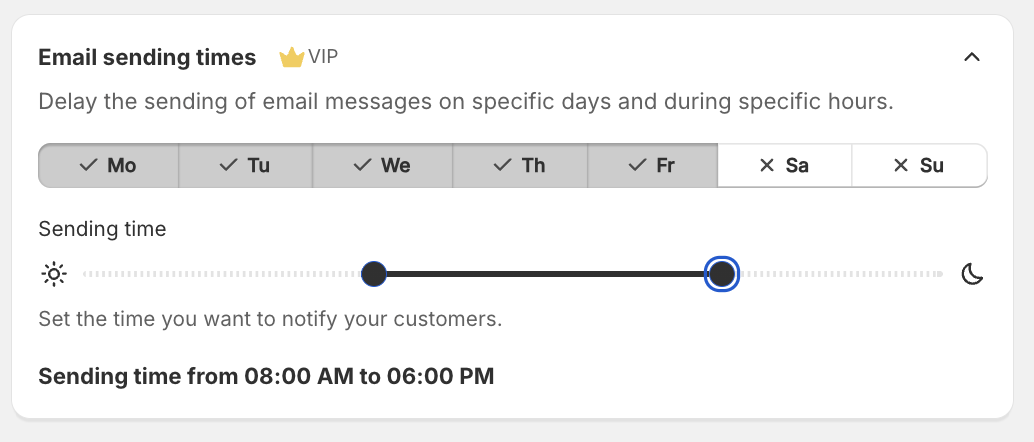
Where to find the setting
Open the reminder plan you want to edit, then scroll to the section labeled Email sending times (and, if you use SMS, SMS sending times). Both sections use the same workflow.
Set allowed days and hours
In Reminder plan > Your reminder plan > Email sending times (or SMS sending times), toggle the weekday buttons (e.g., Mo, Tu, We, Th, Fr, Sa, Su) to allow or block sending on those days.
Under Sending time, drag the slider handles to set your start and end time.
If you send both channels, configure the same restrictions in SMS sending times so emails and texts follow the same quiet hours.
What happens when a reminder falls outside your window?
If a reminder is due on a blocked day (for example, Sa or Su), it’s delayed until the next allowed day.
If a reminder is due outside your Sending time range (for example, late night), it’s delayed until the next allowed time in your window.
You can set different windows for email and SMS if you want (for example, email during business hours, SMS only in the afternoon). The settings in Email sending times and SMS sending times are applied independently.