Follow up on orders based on customer/order tags
What this does
Kindly can limit which unpaid orders enter a reminder plan by using the Order filter. This is useful if you only want to follow up on:
Orders with a specific order tag (for example,
doremind)Orders belonging to customers with a specific customer tag (for example,
B2B)
With tag-based filtering, you can run different reminder plans for different customer segments or workflows (B2B vs. B2C, wholesale, VIP, internal review, etc.).
Filter by order tag
Go to Reminder plans > Your reminder plan and click edit.
Scroll to the Order filter section and turn it on.
Select Order tag.
Choose one of the options:
Consider only: only orders that have this tag will be followed up.
Exclude: orders that have this tag will be skipped.
In the tag field, type the exact order tag you want to match.
Save your plan. If you want the plan to run automatically, click Enable autopilot... in the top right corner.
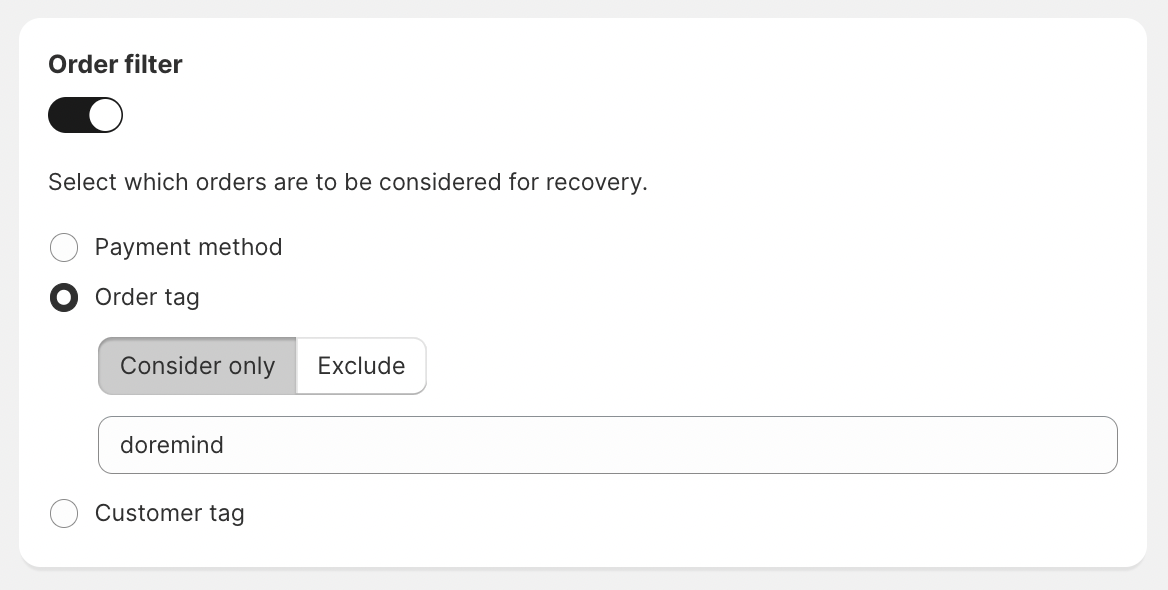
Kindly checks whether an order does or does not have the tag you entered, and then includes or excludes it from recovery based on your selection.
Where to add order tags
You can add order tags in Shopify’s order detail view (in the bottom right, under Tags).
If you want tags to be applied automatically, consider using an auto-tagging app like TR Robot or Shopify Flow.
Filter by customer tag
Go to Reminder plans > Your reminder plan and click edit.
Scroll to Order filter and turn it on.
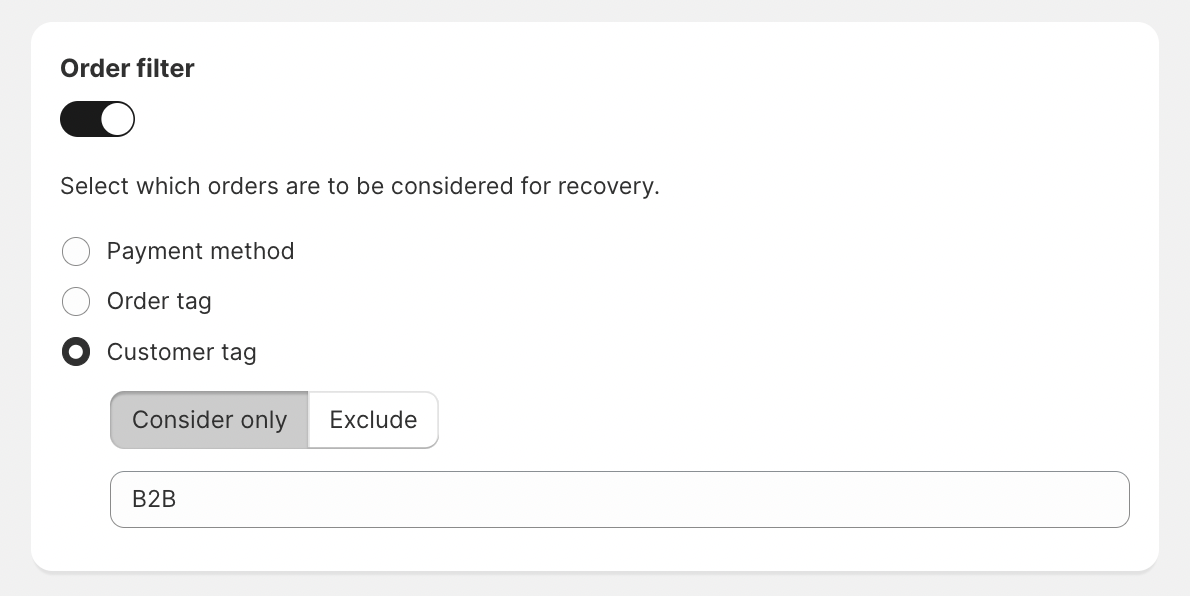
Select Customer tag.
Choose:
Consider only: only orders from customers with this tag will be followed up.
Exclude: orders from customers with this tag will be skipped.
Type the exact customer tag you want to match.
Save your plan. To automate it, click Enable autopilot... in the top right corner.
Where to add customer tags
You can add customer tags in Shopify’s customer detail view (in the bottom right, under Tags).
If your filter doesn’t seem to work, double-check spelling and capitalization. Tag matching is based on the tag text you enter.
FAQ
When should I use Consider only vs Exclude?
Use Consider only when you want a plan to target a specific segment (for example, only B2B customers). Use Exclude when you want the plan to apply to most orders but skip a tagged subset (for example, vip or manual-review).
How can I confirm the tag filter is working? (quick test)
Add the relevant tag in Shopify (to the order or to the customer), then create (or keep) an unpaid order that should match your filter. In Kindly, go to the dashboard and check the follow-up list. The order should appear (or be excluded) according to your Consider only/Exclude selection.
Can I filter the payment method and tags at the same time?
In the Order filter section, you choose one filter type at a time (Payment method, Order tag, or Customer tag). If you need different logic, use multiple reminder plans and assign each plan the appropriate filter.